Scene & appearance
These tools let you read and reshape the live scene manifest without re-running a script. Every write triggers an automatic viewport reload via ScriptWatcher. All five tools are available on both the Swift and Node servers.
For visual output — PNG previews, dimension overlays, bounding boxes — see Annotations & preview.
1. Read the scene
Call get_scene at any point to inspect what bodies are currently loaded, their display names, colors, and material properties.
// tool: get_scene — arguments
{}
// example result
{
  "bodies": [
    {
      "id": "housing",
      "name": "Housing",
      "color": [0.7, 0.7, 0.75, 1.0],
      "roughness": 0.4,
      "metallic": 0.6
    },
    {
      "id": "lid",
      "name": "Lid",
      "color": [0.2, 0.5, 0.9, 1.0],
      "roughness": 0.3,
      "metallic": 0.0
    }
  ],
  "description": "Two-part enclosure"
}
2. Recolor and set material properties
set_appearance updates color, opacity, roughness, metallic, and display name in one call. Only bodyId is required; all other fields are optional and leave the existing values unchanged if omitted.
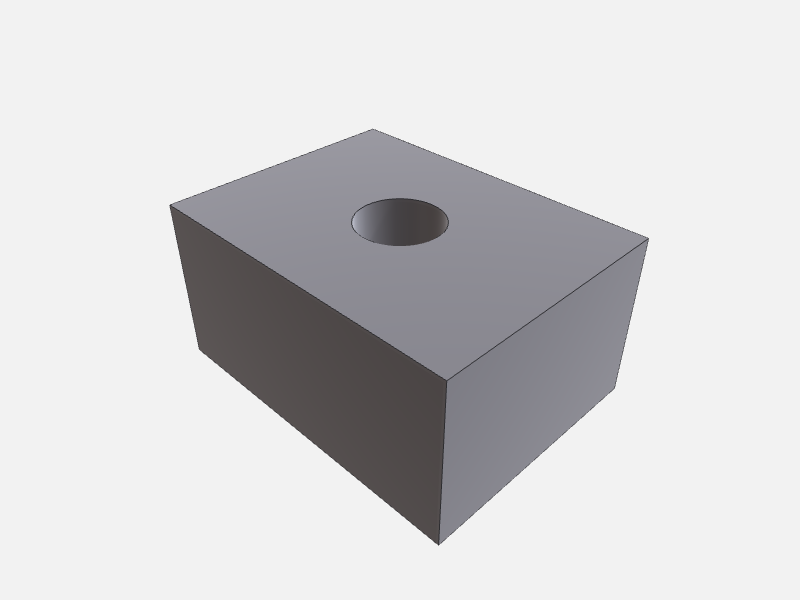
Change color and make translucent:
// tool: set_appearance — arguments
{
  "bodyId": "widget",
  "color": [0.85, 0.12, 0.12],
  "opacity": 0.65
}
// example result
{
  "updated": "widget",
  "color": [0.85, 0.12, 0.12, 0.65]
}

Set PBR metallic / roughness for a steel look:
// tool: set_appearance — arguments
{
  "bodyId": "lid",
  "color": [0.75, 0.75, 0.78],
  "roughness": 0.2,
  "metallic": 0.9,
  "name": "Lid (brushed steel)"
}
// example result
{
  "updated": "lid",
  "color": [0.75, 0.75, 0.78, 1.0],
  "roughness": 0.2,
  "metallic": 0.9,
  "name": "Lid (brushed steel)"
}
color is RGBA or RGB with values 0–1. opacity is a convenience shorthand that sets the alpha channel while leaving RGB unchanged — it is additive with the alpha in color (last write wins).
3. Rename a body
rename_body changes a body’s id in the manifest. Fails if newBodyId is already taken.
// tool: rename_body — arguments
{
  "bodyId": "part",
  "newBodyId": "housing"
}
// example result
{ "renamed": { "from": "part", "to": "housing" } }
After renaming, any stored selectionIds that embed the old id (format sel:<bodyId>#<kind>[<idx>]) become stale — re-select or use remap_selection (Swift only) to carry them across.
4. Remove a body
remove_body deletes one body from the scene and removes its BREP file from the output directory.
// tool: remove_body — arguments
{ "bodyId": "lid" }
// example result
{ "removed": "lid" }
To remove everything, use clear_scene instead.
5. Clear the scene
clear_scene removes every body. Pass keepHistory: true to retain the compare_versions ring buffer across the reset — useful when you want to diff the rebuilt scene against a state from before the wipe.
// tool: clear_scene — arguments
{ "keepHistory": true }
// example result
{ "cleared": 2 }
6. Diff against an earlier run
compare_versions diffs the current scene against a snapshot taken before one of the last 10 execute_script runs. Pure manifest mutations (set_appearance, rename_body, etc.) do not advance the snapshot counter — only execute_script does.
// tool: compare_versions — arguments
{ "since": 1 }
// example result
{
  "since": 1,
  "added": ["rib"],
  "removed": [],
  "appearanceChanged": ["housing"],
  "fileChanged": ["housing"]
}
fileChanged means the underlying BREP changed (geometry was rebuilt); appearanceChanged means only manifest metadata (color, name, etc.) differs. A body can appear in both lists.
Use since: 2 to look further back — e.g. to compare the current state against a run before a multi-step editing session. Requesting a depth beyond available history returns an error.
The widget — interactive model
🖱️ Drag to orbit · scroll to zoom · auto-rotating. (Model exported via export_scene → glTF.)