Technical drawings
Two verbs cover the DXF output path: dxf-export for a quick single-view projection of any BREP, and drawing-export for a complete ISO 128-30 multi-view sheet with border, title block, sections, centerlines, and dimensions. Both produce DXF R12 ASCII readable by every major CAD tool.
Full flag and schema details are in Drawings & export reference.
Recipe 1 — Quick HLR view with dxf-export
Use dxf-export when you need a single orthographic view and nothing else: it projects the shape along a view direction using hidden-line removal (HLR) and writes the result directly to DXF R12. No JSON spec, no layout — just an input BREP, an output path, and an optional view direction.
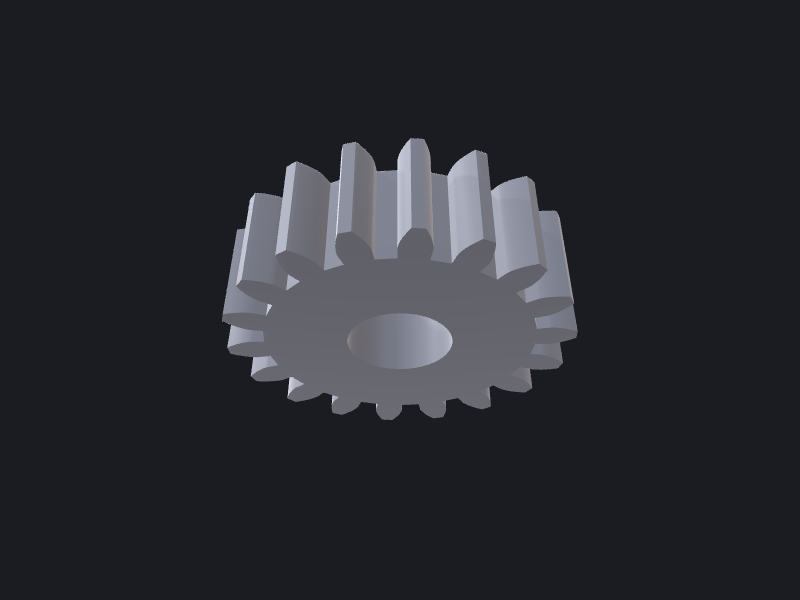
occtkit dxf-export spur-gear.brep spur-gear-top.dxf --view 0,0,1
The default direction is 0,0,1 (top-down along +Z), so the flag can be omitted for a plan view. Use --view 1,0,0 for a right-hand side view, 0,-1,0 for a front view, and so on.
{
  "output": "spur-gear-top.dxf",
  "view": [0, 0, 1],
  "deflection": 0.1
}
Increase --deflection (default 0.1 mm) if curved edges look faceted in the DXF; decrease it for a tighter approximation at the cost of output file size.
For a front view of the same gear:
occtkit dxf-export spur-gear.brep spur-gear-front.dxf --view 0,-1,0 --deflection 0.05
{
  "output": "spur-gear-front.dxf",
  "view": [0, -1, 0],
  "deflection": 0.05
}
Recipe 2 — Full ISO sheet with drawing-export
drawing-export composes a complete ISO 128-30 multi-view technical drawing from a JSON spec. Pipe the spec on stdin (or pass a path as the first argument) and drawing-export writes one DXF R12 sheet. No positional BREP argument: the shape path is a field in the spec itself.
The sheet it produces includes, based on what the spec enables:
- ISO 5457 border with centring marks
- ISO 7200 title block (title, drawing number, owner, material, revision, sheet number, …)
- ISO 5456-2 first- or third-angle projection symbol
- HLR orthographic views (front, top, right, or any custom
direction) - Section views with auto-hatching per ISO 128-50, cutting-plane lines and labels
- Auto-centerlines (revolution axes) and auto-centermarks (circular features) per ISO 128-40
- ISO 6410 cosmetic thread overlays
- ISO 1302 surface-finish symbols
- ISO 1101 GD&T feature-control frames
- Detail views (zoomed close-ups)
- User-specified linear, radial, diameter, and angular dimensions
- ISO 5455 standard-scale auto-snap
Minimal three-view sheet
The smallest useful spec is a sheet definition, a title, and three views:
{
  "shape": "spur-gear.brep",
  "output": "spur-gear-drawing.dxf",
  "sheet": {
    "size": "a3",
    "orientation": "landscape",
    "projection": "third",
    "scale": "1:1"
  },
  "title": {
    "title": "Spur Gear M2 Z30",
    "drawingNumber": "GR-030-A",
    "material": "Steel 1045",
    "revision": "1",
    "creator": "E. Lynch-Bell"
  },
  "views": [
    {"name": "front"},
    {"name": "top"},
    {"name": "right"}
  ],
  "centerlines": "auto",
  "centermarks": "auto"
}
cat spur-gear-drawing.json | occtkit drawing-export
{
  "output": "spur-gear-drawing.dxf",
  "sheet": "A3 landscape",
  "projection": "third",
  "scale": "1:1",
  "viewCount": 3,
  "sectionCount": 0,
  "detailCount": 0
}
Adding a section and a dimension
To add a mid-plane section through the gear hub (cutting the gear on the XZ plane) and a diameter dimension on the front view:
{
  "shape": "spur-gear.brep",
  "output": "spur-gear-full.dxf",
  "sheet": {
    "size": "a3",
    "orientation": "landscape",
    "projection": "third",
    "scale": "1:1"
  },
  "title": {
    "title": "Spur Gear M2 Z30",
    "drawingNumber": "GR-030-A",
    "material": "Steel 1045",
    "revision": "2",
    "creator": "E. Lynch-Bell",
    "dateOfIssue": "2026-06-20"
  },
  "views": [
    {"name": "front"},
    {"name": "top"},
    {"name": "right"}
  ],
  "sections": [
    {
      "name": "A-A",
      "plane": {"origin": [0, 0, 0], "normal": [0, 1, 0]},
      "labelOnView": "front"
    }
  ],
  "centerlines": "auto",
  "centermarks": "auto",
  "dimensions": [
    {
      "view": "front",
      "type": "diameter",
      "centre": [0, 0],
      "radius": 30.0,
      "leaderAngle": 45
    }
  ]
}
cat spur-gear-full.json | occtkit drawing-export
{
  "output": "spur-gear-full.dxf",
  "sheet": "A3 landscape",
  "projection": "third",
  "scale": "1:1",
  "viewCount": 3,
  "sectionCount": 1,
  "detailCount": 0
}
Using auto scale
Set "scale": "auto" and the composer selects the nearest ISO 5455 preferred scale that fits all views on the sheet. The chosen scale is reported in the output envelope’s scale field.
File vs stdin
Both are valid:
# stdin
cat spec.json | occtkit drawing-export

# file argument
occtkit drawing-export spec.json
In-process use
When embedding in an iOS or macOS app, skip the CLI and call the library directly:
import DrawingComposer

let result = try Composer.render(spec: spec, shape: shape)
try result.writer.write(to: outputURL)
The shape and output fields of DrawingSpec are unused in this path — pass nil for both and supply the live Shape and destination URL as arguments instead.
For the full JSON schema — every field, enum value, and nested type — see Sources/DrawingComposer/Spec.swift and the Drawings & export reference.