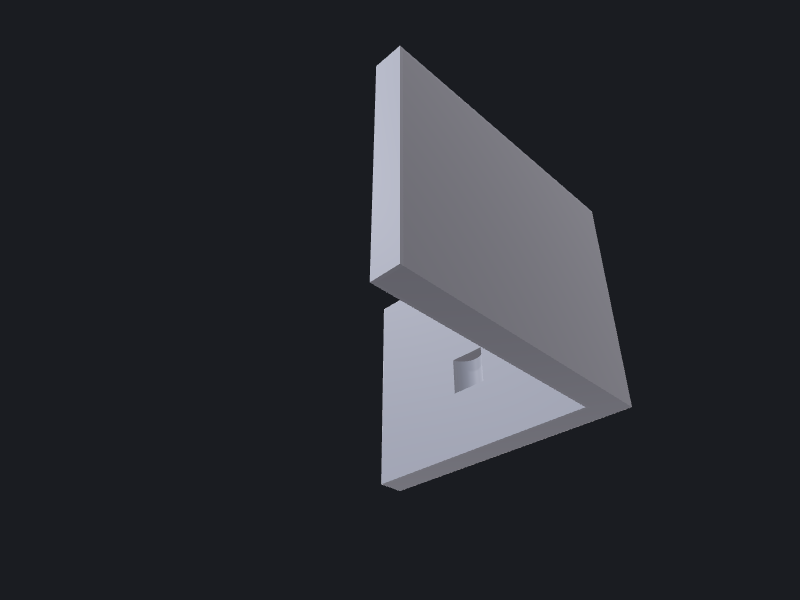
Script iteration
The script harness gives you a CadQuery/OpenSCAD-style inner loop: edit one Swift file, run one command, and see the result in a live viewport — no Xcode project, no app target, no simulator. This page covers the loop itself, the minimal ScriptContext template, how to add different geometry kinds with colors, how to attach metadata, and what the output pipeline produces.
For per-API detail see the ScriptHarness reference.
The edit → run → reload loop
Sources/Script/main.swift   ← your geometry lives here
        │
        │  swift run Script   (~1–2 s incremental)
        ▼
~/.occtswift-scripts/output/          (or iCloud Drive — see Output location below)
   body-0.brep   body-1.brep  …      ← one BREP per ctx.add call
   output.step                        ← combined STEP (all bodies)
   manifest.json                      ← written last; triggers the watcher
        │
        │  Script Watcher (inside the OCCTSwift demo app)
        ▼
   viewport auto-reloads
- Open
Sources/Script/main.swiftin any editor. - Run
swift run Scriptin the terminal — first build is a few seconds; incremental rebuilds take roughly one second. - The demo app’s Script Watcher polls the output directory and reloads whenever
manifest.jsonchanges. Keep the app open beside your editor.
Minimal template
import OCCTSwift
import ScriptHarness

let ctx = ScriptContext(metadata: ManifestMetadata(
    name: "Mounting bracket",
    revision: "1",
    dateModified: Date(),
    tags: ["bracket", "hardware"]
))
let C = ScriptContext.Colors.self

// — geometry goes here —

try ctx.emit(description: "Drilled mounting bracket")
ctx.emit is always the last call. It writes output.step, then writes manifest.json (the trigger file the watcher watches for). Add geometry between the two lines.
Adding geometry — Shape, Wire, Edge
Solid shape
guard let blank = Shape.box(width: 80, height: 40, depth: 8) else { fatalError("box") }
try ctx.add(blank, id: "blank", color: C.steel, name: "Stock")
Wire (sketch / profile)
Wire bodies are displayed as wireframe only — useful for cross-section inspection and sweep paths.
let profile = Wire.rectangle(width: 80, height: 40)!
try ctx.add(profile, id: "sketch", color: C.yellow, name: "Footprint")
Edge (construction line, axis)
let axis = Edge.line(from: SIMD3(40, 20, 0), to: SIMD3(40, 20, 30))!
try ctx.add(axis, id: "axis", color: C.red, name: "Drill axis")
Available colors
let C = ScriptContext.Colors.self
// C.red  C.green  C.blue  C.yellow  C.orange  C.purple
// C.cyan  C.white  C.gray  C.steel  C.brass   C.copper
Worked example — drilled mounting bracket
Build a rectangular blank, add two countersunk mounting holes and a central slot, then register each stage so the viewport shows the progression.
import OCCTSwift
import ScriptHarness

let ctx = ScriptContext(metadata: ManifestMetadata(
    name: "Drilled mounting bracket",
    revision: "1",
    dateModified: Date(),
    source: "Internal design",
    tags: ["bracket", "mounting", "hardware"],
    notes: "80 × 40 × 8 mm blank; M5 holes at 10 mm from each corner; 20 × 6 mm centre slot"
))
let C = ScriptContext.Colors.self

// ── 1. Blank ──────────────────────────────────────────────────────────────────
guard let blank = Shape.box(width: 80, height: 40, depth: 8) else { fatalError("box") }

// ── 2. Drill four M5 mounting holes (⌀ 5.3 mm through) ──────────────────────
let holePositions: [SIMD3<Double>] = [
    SIMD3( 10,  10, -1),
    SIMD3( 70,  10, -1),
    SIMD3( 10,  30, -1),
    SIMD3( 70,  30, -1),
]
let drillDir = SIMD3<Double>(0, 0, 1)

var drilled = blank
for pos in holePositions {
    guard let next = drilled.drilled(at: pos, direction: drillDir,
                                     radius: 2.65, depth: 10) else {
        fatalError("drill failed at \(pos)")
    }
    drilled = next
}

// ── 3. Centre slot (20 × 6 mm, milled through) ───────────────────────────────
let slotProfile = Wire.rectangle(width: 20, height: 6)!
    .translated(by: SIMD3(30, 17, 0))!          // centre at (40, 20)
guard let slotTool = Shape.extrude(profile: slotProfile,
                                   direction: SIMD3(0, 0, 1), length: 10)?
        .translated(by: SIMD3(0, 0, -1)) else { fatalError("slot tool") }

guard let bracket = drilled.subtracting(slotTool) else { fatalError("slot cut") }

// ── 4. Light fillet on top face edges ────────────────────────────────────────
let finished = bracket.filleted(radius: 1.5) ?? bracket

// ── 5. Emit ──────────────────────────────────────────────────────────────────
try ctx.add(finished, id: "bracket", color: C.steel, name: "Bracket")

// Show the footprint wire for cross-section inspection
let footprint = Wire.rectangle(width: 80, height: 40)!
try ctx.add(footprint, id: "footprint", color: C.yellow, name: "Footprint")

// Show one drill-axis edge for orientation reference
let refAxis = Edge.line(from: SIMD3(10, 10, -1), to: SIMD3(10, 10, 9))!
try ctx.add(refAxis, id: "drill-axis", color: C.red, name: "Drill axis (ref)")

try ctx.emit(description: "Drilled mounting bracket")
Run it:
swift run Script
Example console output:
Script output: 3 bodies written to /Users/you/.occtswift-scripts/output
  STEP: output.step
The viewport reloads and shows the finished bracket (steel), the yellow footprint wire, and the red drill-axis edge.
Manifest metadata
Pass ManifestMetadata to ScriptContext(metadata:) to attach structured information to every run. All fields except name are optional.
| Field | Type | Purpose |
|---|---|---|
name | String | Part name (required) |
revision | String? | Version tag ("2", "A", "v1.3") |
dateCreated | Date? | First-created date |
dateModified | Date? | Use Date() for the current run |
source | String? | Drawing number, standard, or origin |
tags | [String]? | Searchable keywords |
notes | String? | Free-form design notes |
The metadata appears verbatim in manifest.json under the "metadata" key, so downstream tools (the demo app, occtkit, CI scripts) can read it without re-parsing geometry.
Output pipeline and location
ctx.emit() writes three artifacts in order:
| File | Format | Purpose |
|---|---|---|
body-N.brep | OCCT BREP | One file per ctx.add call; loaded by the watcher |
output.step | STEP AP214 | Combined geometry for FreeCAD, ezdxf, STEPUtils |
manifest.json | JSON | Body list + metadata; written last to trigger reload |
Output location
On macOS, ScriptContext prefers iCloud Drive when the container exists:
~/Library/Mobile Documents/com~apple~CloudDocs/OCCTSwiftScripts/output/
If iCloud Drive is absent (CI, non-iCloud Mac), it falls back to:
~/.occtswift-scripts/output/
The directory is wiped and recreated on each ScriptContext init, so stale bodies from a previous run never accumulate. To suppress the STEP export (faster iteration when you only need the viewport), pass exportSTEP: false:
let ctx = ScriptContext(exportSTEP: false, metadata: ...)
Example manifest.json
{
  "bodies": [
    {
      "color": [0.7, 0.7, 0.75, 1.0],
      "file": "body-0.brep",
      "format": "brep",
      "id": "bracket",
      "name": "Bracket"
    },
    {
      "color": [1.0, 0.9, 0.2, 1.0],
      "file": "body-1.brep",
      "format": "brep",
      "id": "footprint",
      "name": "Footprint"
    }
  ],
  "description": "Drilled mounting bracket",
  "metadata": {
    "dateModified": "2026-06-20T00:00:00Z",
    "name": "Drilled mounting bracket",
    "notes": "80 × 40 × 8 mm blank; M5 holes at 10 mm from each corner; 20 × 6 mm centre slot",
    "revision": "1",
    "source": "Internal design",
    "tags": ["bracket", "hardware", "mounting"]
  },
  "timestamp": "2026-06-20T00:00:00Z",
  "version": 1
}
Next steps
Once the geometry is correct, extract it into a reusable library target so the same validated Shape-returning function can be imported by your app — see Authoring geometry for the end-to-end workflow.